Showing posts with label Windows Registry. Show all posts

Saturday, September 23, 2006

Trick of the Week 3 - Permiting Blocked Outlook Attachments

Certain file types are blocked in Outlook. I have experience with *.mdb and *.tmp files. By default, emails that contains that kind of files are blocked. That means, that you can't open these attachments. Outlook says that this file types might "harm" your system. But here is a trick, registry tweak, that will help you.

You can accomplish that with Registry Tweaker.
  1. Run Registry Tweaker (1.8.5.153) and go to Windows XP database. Select Microsoft Office category and then select Outlook 2000/XP/2003 allowed attachments tweak from the list. Tick the box with appropriate Office version. Registry Tweaker supports Office 2000, XP and 2003. Maybe even Office 2007, but I haven't test this one.
  2. After ticking the box, click Apply button.
  3. You are prompted with an input window. If you want to unblock MDB and TMP files then write the value in this format: *.mdb;*.tmp. If you need more file types, add them and separate them with ;.
  4. Click OK, and that's it. You need to restart Outlook for this to work.

More Information about the tweak:
For Office 2003 registry info look like this:
Path: HKEY_CURRENT_USER\Software\Microsoft\Office\11.0\Outlook\Security\
Value name: Level1Remove
Value:
*.mdb;*.tmp

Tool: not available yet.
You need Microsoft Framework 2.0 to run this tool. Get it here.

Saturday, September 16, 2006

Trick of the Week announcement

Each week (as an addition to article) I'll upload a tool, which will check and apply tweak, related to article. It's for those who are lazy or don't know how to use methods described in articles. :)

Great, right?

Trick of the Week 2 - Windows Autologon and Autolock

This trick will ease and secure your everyday system boot. Do you hate, waiting for login screen to appear and then wait for programs to load? Than this trick will help you in everyday process of turning on the PC. It's easy 5 step procedure, where you....of course....edit windows registry to accomplish that.

Run Registry Tweaker and under Windows XP database find tweak Enable Automatic Windows Logon. Under this tweak you have to apply 5 keys. Select them all and then click apply. You'll be prompted by 5 input boxes:

  1. First is Turn ON/OFF automatic logon. Set that value to 1. Click OK.
  2. Second is Auto Login domain name. The program gives you your domain/workgroup. Just click OK.
  3. Third value is Auto Login User Name. Enter the valid user name, which you want to be auto logon, when booting. Click OK.
  4. Fourth is Auto Login Password. Enter valid password for that user name. Click OK.
  5. Fifth value is Lock PC on startup. Program gives you default value (rundll32.exe user32.dll, LockWorkStation), just click OK and that's it.

Next time when your Windows will boot up, you'll be logged in automatically and after all programs are up and ready, system is locked. The good thing is that you can turn on your PC and go for tea/coffee/something and come back and start working. Just unlock it and you are ready to go.

Tool: Download it here.
You need Microsoft Framework 2.0 to run this tool. Get it here.

Monday, September 11, 2006

Part 1: Internet Explorer Security

While I was programming Registry Tweaker, I discovered some things which are related with Internet Explorer and Registry. As we all know, 99% of programs use registry to store settings and IE is no exception. I will describe you some techniques which Spyware removal tools, like SpywareBlaster and SpyBot, use. So, let's start with the first part.

If you are familiar with spyware removal programs, than you probably saw that besides other things, program scans a part of the registry, which contains this long strings: eg {00000566-0000-0010-8000-00AA006D2EA4}. This string is called CLSID number and identifies ActiveX Control. Each control has it's own number. Now if I show you the whole registry path, it would look like this: HKEY_LOCAL_MACHINE\SOFTWARE\Microsoft\Internet Explorer\ActiveX Compatibility\{00000566-0000-0010-8000-00AA006D2EA4}
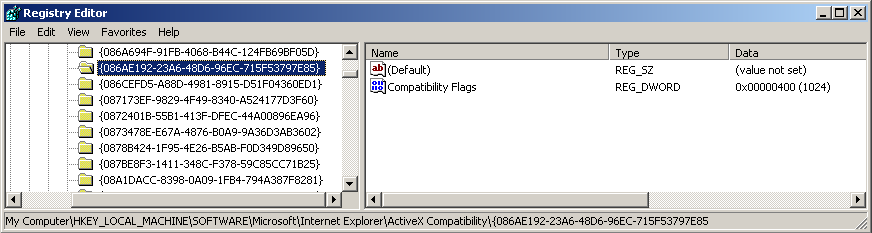
Under HKEY_LOCAL_MACHINE hive, there is a key \SOFTWARE\Microsoft\Internet Explorer\ActiveX Compatibility which contains CLSID numbers. CLSID numbers are also registry keys (not values). To make a step forward, under each CLSID key, there is one important value, which caries a setting for ActiveX to disable (please note, to enable ActiveX you should delete the CLSID key from the registry). This value is called Compatibility Flags and it's REG_DWORD type. And the magic value is 1024 as decimal format or 400 as hexadecimal. Here is example:

HKEY_LOCAL_MACHINE\SOFTWARE\Microsoft\Internet Explorer\ActiveX Compatibility\{00000566-0000-0010-8000-00AA006D2EA4}
value name: Compatibility Flags
value: 1024

Here is a screenshot taken directly from regedit:


And that's it! Easy isn't it? This is the technique that Spyware blaster and Spybot (and other) use to immunize (prevent from running) Internet Explorer from unwanted ActiveX Controls. The hard thing here is, that you have to get CLSID numbers from controls authors or more exciting way, to discover them yourself :D Use virtual machines, where you can test them, infect your machine, etc. Of course the most elegant way is to get the database online, or just extract CLSID from databases of other Spyware removal tools. How to do it, it's up to you.

Next time, I'll talk more about the IE security. So, come back later ;)

Sunday, September 10, 2006

Trick of the Week 1 - Use Run as... function

First Procedure

In Windows 2000 / XP, you can run programs as a different user than the currently-logged on user. To use it in Windows 2000, the RunAs service must be running and in Windows XP, SecondaryLogon service must be running. Please check first, if you are running those services.

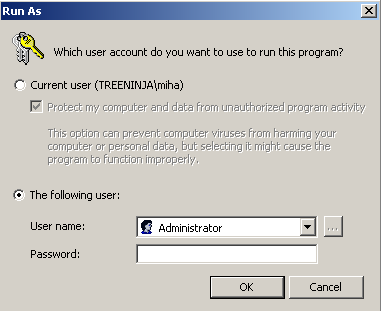
Then press SHIFT key on the keyboard and right click on the application you wish to setup (eg setup.exe). In the menu you'll see options "Run As...". Click it and you are present with this window bellow. Click the the following user option, type or select the User name, type the Password, and then click OK.


This screen was taken from Windows XP, in Windows 2000 it's a bit different. In Run As Other User, type the User name, Password, and Domain, and then click OK. That's it.

Second Procedure (apply via registry):

This is more advanced procedure (Please update Windows XP database before applying this tweak, becouse a bug has been found in database.). You can again check if the service is running and then use Registry Tweaker to add "Run as..." option to menu, so it's available for you all the time (no need for pressing SHIFT key). To do this find "Run as... option from the context menu" tweak in Windows XP database and apply it. Reboot PC.

Tool: Download it here.
You need Microsoft Framework 2.0 to run this tool. Get it here.